


Is your laptop running hotter than usual and feeling sluggish? You’re likely experiencing CPU throttling, a frustrating issue where your processor slows down to prevent overheating. This can significantly impact performance, making everyday tasks feel slow and cumbersome. Fortunately, there are several steps you can take to address this problem and restore your laptop’s responsiveness.
Understanding CPU Throttling: Causes & Mechanisms
CPU throttling is a built-in safety mechanism designed to protect your processor from damage due to excessive heat. When the internal temperature reaches a predetermined threshold, the system automatically reduces the clock speed – essentially slowing down the processing power – to prevent overheating. While it safeguards hardware, this directly impacts performance. Several factors can trigger this protective response; understanding them is key to finding a solution.
Common Contributors to Processor Throttling
Multiple issues can lead to your laptop’s processor hitting those temperature limits. Dust accumulation within the cooling system is often a primary culprit, as it obstructs airflow and traps heat. Furthermore, over time, the thermal paste—a crucial material facilitating heat transfer between the processor and heatsink—can dry out, diminishing its effectiveness. Other contributors include restricting ventilation by using your laptop on soft surfaces like beds or blankets, running resource-intensive applications such as video editing software or games, and even a high ambient room temperature.
Practical Solutions for Resolving CPU Throttling
The good news is that fixing CPU throttling doesn’t always require expensive hardware upgrades. Several straightforward steps can often resolve the issue effectively. Let’s explore some practical solutions you can implement.
1. Clearing Dust and Debris
Regular cleaning of your laptop’s vents is paramount. Use compressed air to gently blow out any accumulated dust from these openings, typically located on the sides or bottom of the device. Importantly, avoid spinning the fan blades with the compressed air, as this can cause damage. For example, a quick burst of air every three months can prevent significant buildup.
2. Optimizing Ventilation and Cooling
Ensure your laptop has adequate ventilation by using it on a hard, flat surface. Soft surfaces like beds or blankets restrict airflow and contribute to heat retention. Consider investing in a laptop cooling pad for enhanced ventilation; these devices provide additional airflow and can noticeably reduce temperatures. Moreover, closing unnecessary applications and browser tabs reduces the load on your processor.
3. Monitoring Processor Temperature
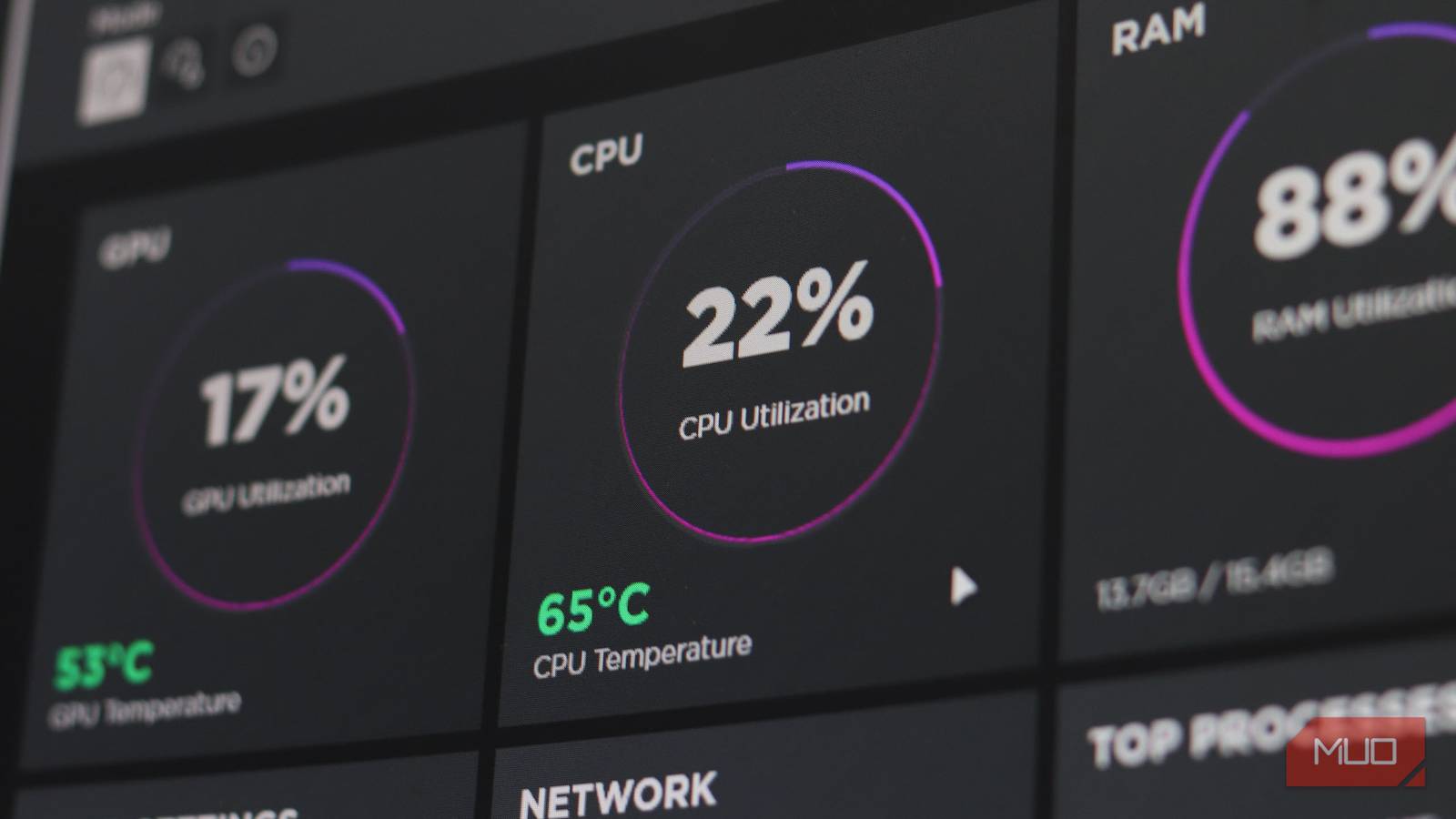
Tracking your processor’s temperature is crucial to diagnose CPU throttling accurately and evaluate the effectiveness of implemented solutions. Download a monitoring tool like HWMonitor or Core Temp – these tools provide real-time data on internal temperatures. Sustained temperatures above 90°C (194°F) typically warrant attention, indicating that further action is needed to improve cooling.

4. Thermal Paste Replacement (Advanced)
If cleaning and ventilation don’t sufficiently address the issue, replacing the dried thermal paste might be necessary. This involves disassembling your laptop to access the heatsink—a complex procedure that could potentially void your warranty if not performed correctly. It’s vital to watch detailed tutorials specific to your laptop model before attempting this advanced solution. Therefore, proceed with caution and only if you feel comfortable with disassembly.
Maintaining Optimal Cooling for Long-Term Performance
After resolving the immediate CPU throttling problem, proactively implementing preventative measures is essential to maintain optimal performance and prevent recurrence. Regular cleaning of vents, ensuring proper ventilation during use, managing background processes effectively, and considering a cooling pad can all contribute to a cooler and more efficient laptop.
By following these steps, you can ensure your laptop runs smoothly and efficiently, avoiding the frustration of CPU throttling and enjoying a consistently reliable computing experience. Furthermore, remember that regular maintenance is key to long-term performance and extends the lifespan of your valuable device.
Source: Read the original article here.
Discover more tech insights on ByteTrending.
Discover more from ByteTrending
Subscribe to get the latest posts sent to your email.