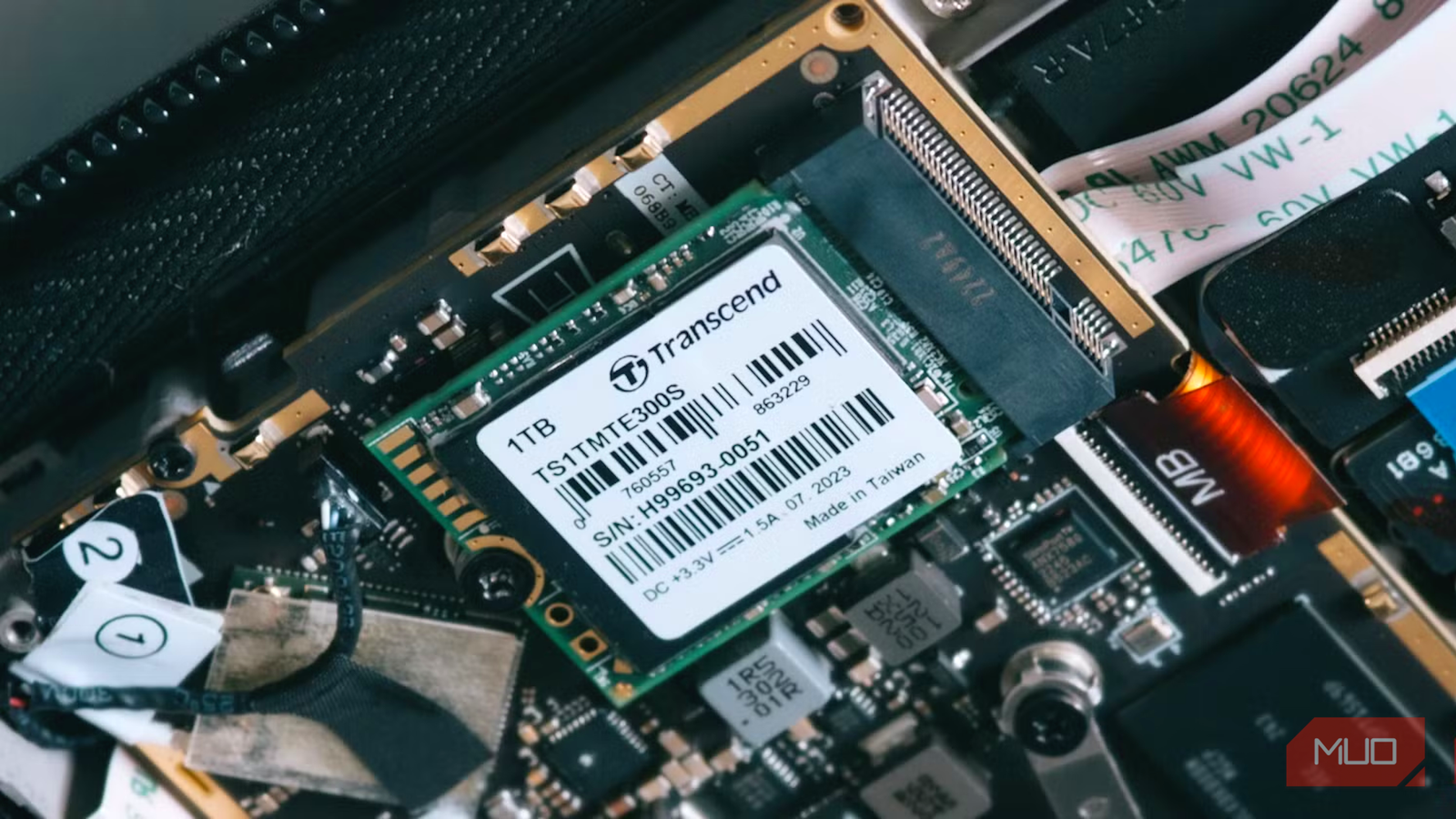


That empty M.2 slot on your motherboard comes with a lot of potential. Apart from SSDs, it can take eGPU adapters, lane splitters, and a ton of other accessories that add more functionality than you first imagine. An M.2 upgrade is exciting but requires careful consideration.
However, upgrading to an M.2 drive isn’t always straightforward. There are several pitfalls that many users encounter when attempting this seemingly simple upgrade. Understanding these potential issues beforehand can save you time, frustration, and potentially even damage your hardware. Let’s dive into the most common M.2 upgrade traps and how to avoid them.
1. Slot Conflicts: Sharing Lanes
One of the biggest headaches with M.2 slots is that they often share PCIe lanes with other components, typically your graphics card or a SATA controller. This means installing an M.2 drive can reduce the bandwidth available to these devices.
- The Problem: Your GPU performance might drop if you install an M.2 drive sharing its PCIe lanes. Similarly, SATA ports could experience slower transfer speeds.
- How to Avoid It: Consult your motherboard manual! It will clearly state which M.2 slots share lanes and with what devices. Prioritize your most demanding components – usually the graphics card – when deciding where to install drives. Some motherboards have multiple M.2 slots, allowing you to choose one that doesn’t impact other crucial hardware. Furthermore, understanding lane allocation is key to a successful upgrade.
2. Keying Issues: Matching Your Drive and Slot
M.2 SSDs come in different key types – B-key, M-key, and sometimes a combination (B+M). These keys indicate the type of interface the drive uses.
- The Problem: If you try to insert an M.2 drive with the wrong key into a slot that doesn’t support it, it simply won’t fit, or if it does, it won’t function correctly.
- How to Avoid It: Again, your motherboard manual is your friend! It specifies which keys are supported by each M.2 slot. Most modern motherboards support both B-key and M-key drives, but double-check just in case. Notably, matching the key type ensures proper functionality.
3. Heatsink Considerations: Keeping Things Cool
NVMe SSDs (the most common type of M.2 drive) can generate significant heat during operation, especially when performing heavy workloads. Without proper cooling, they can throttle performance to protect themselves.
- The Problem: Throttling leads to significantly reduced read and write speeds, negating the benefits of a fast NVMe drive.
- How to Avoid It: Many motherboards come with built-in M.2 heatsinks. If yours doesn’t, consider purchasing an aftermarket heatsink. Some high-performance drives even come with their own dedicated heatsinks. Ensure adequate airflow within your case to help dissipate heat. As a result of proper cooling, you’ll maximize the performance of your new drive.
4. BIOS Compatibility: Updating is Key
Occasionally, older motherboards may have compatibility issues with newer M.2 SSDs. This can manifest as the drive not being recognized or experiencing instability.
- The Problem: Your system might fail to boot, or the drive might disappear from BIOS intermittently.
- How to Avoid It: Check your motherboard manufacturer’s website for BIOS updates. These updates often include improved compatibility with newer hardware, including M.2 SSDs. It’s a good practice even if you don’t suspect an incompatibility issue. Similarly, updating the BIOS can resolve other system issues as well.
5. Boot Mode Selection: Setting the Right Configuration
When installing your new M.2 drive as a boot drive, you might need to configure the BIOS settings correctly.
- The Problem: The system may fail to boot from the M.2 drive if the BIOS is not configured properly.
- How to Avoid It: Ensure that your BIOS is set to prioritize booting from the M.2 drive. Some motherboards have options like “UEFI/Legacy Boot” – choose the appropriate mode based on your operating system installation type. On the other hand, incorrect boot settings can prevent your system from starting.
Upgrading to an M.2 SSD can dramatically improve your computer’s performance. By being aware of these common traps and taking preventative measures, you can ensure a smooth and successful upgrade experience.
Source: Read the original article here.
Discover more tech insights on ByteTrending.
Discover more from ByteTrending
Subscribe to get the latest posts sent to your email.