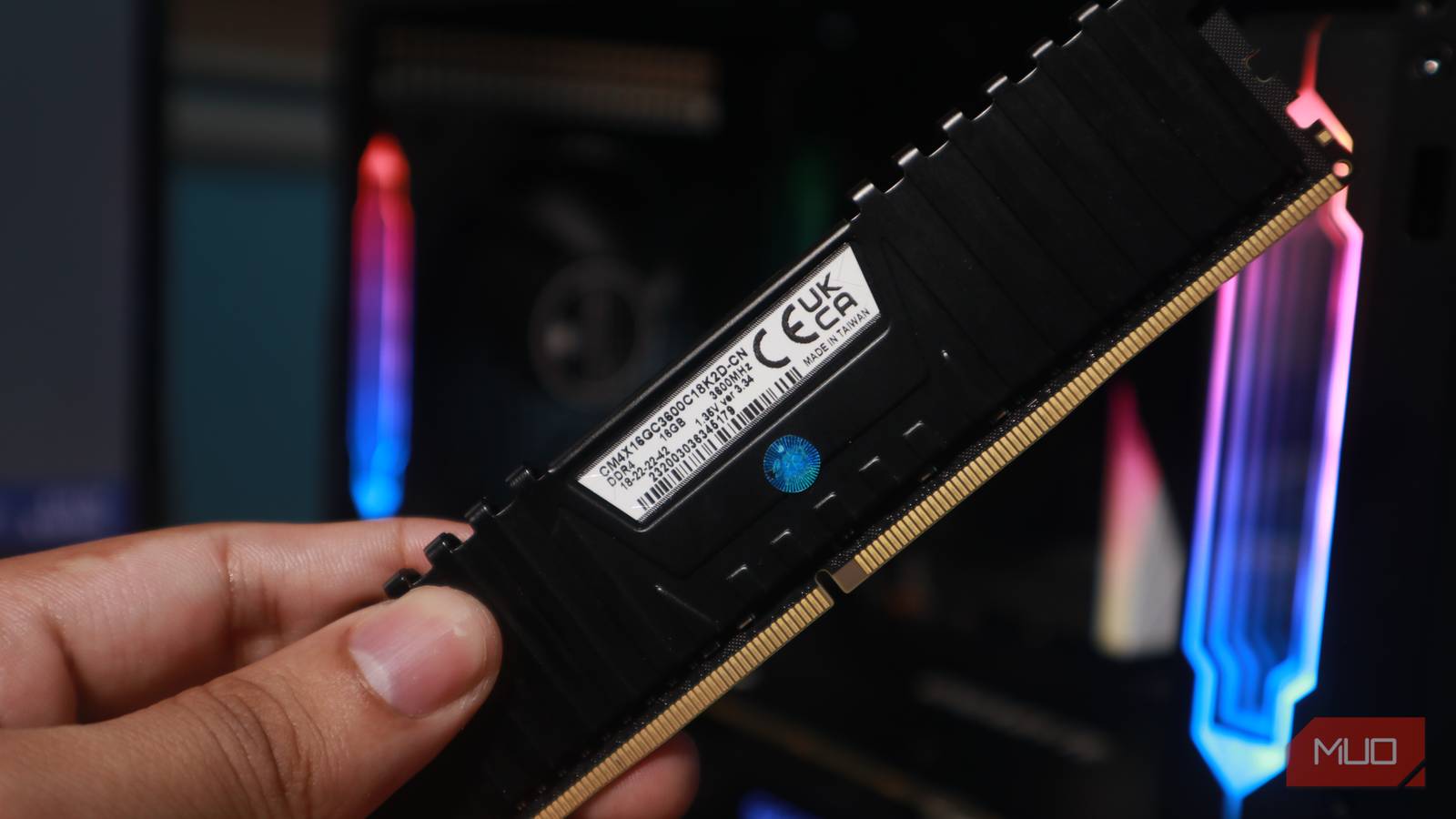



Overclocking your RAM or adjusting its BIOS settings might seem complex, particularly if you’re dealing with an older CPU. While there are BIOS settings that can help when your CPU is maxing out, optimizing your RAM can also make a significant difference. This article explores how tweaking RAM settings provides a cost-effective path to boosting system performance.
Understanding the Relationship Between RAM and Your CPU
Before we dive into specific tweaks, it’s crucial to understand how RAM interacts with your CPU. Random Access Memory (RAM) serves as short-term data storage for your central processing unit (CPU), enabling rapid access to information needed for running applications and processes. The speed at which this RAM operates—measured in MHz or MT/s—directly influences system performance; faster RAM generally reduces latency and improves overall responsiveness. Although a powerful CPU is vital, its effectiveness is often limited by slower memory.
Why Consider Tweaking Instead of Upgrading?
Replacing your existing RAM offers the most straightforward route to increased speed. However, this involves an additional expense and potential compatibility challenges with your motherboard. Consequently, tweaking existing RAM settings provides a more affordable alternative, especially for those on a budget or seeking to maximize performance from their current hardware. It’s important to note that gains will be less substantial compared to upgrading; however, even minor improvements can noticeably enhance everyday tasks and gaming.
Key RAM Settings You Can Adjust
Accessing these settings typically requires entering your computer’s BIOS during startup—often achieved by pressing Delete, F2, or a designated key. Always consult your motherboard manual for the correct key. Here are some crucial settings to explore.
- XMP Profile: This is usually the easiest place to start. XMP (Extreme Memory Profile) represents a pre-configured profile stored on the RAM module itself, created by the manufacturer. It contains optimized timings and voltages. Enabling XMP automatically adjusts your RAM to its advertised speed, often delivering an instant performance boost.
- Memory Frequency: If XMP doesn’t fully meet your needs (or isn’t available), you can manually adjust the memory frequency. Increase it gradually—for example, in increments of 10-20 MHz—and thoroughly test for stability after each change.
- Timings (CAS Latency, tRCD, tRP, tRAS): These numbers represent internal delays within the RAM’s operations. Lower timings generally indicate faster performance; however, tightening these values can introduce instability. Therefore, proceed cautiously and consult your RAM manufacturer’s specifications for safe ranges.
- Memory Voltage: Increasing memory voltage (within a range specified by the manufacturer) can help stabilize higher frequencies or tighter timings. Exercise extreme caution with this setting; excessive voltage can potentially damage your RAM modules.

Ensuring Stability and Understanding Potential Risks
Following any adjustments to your RAM settings, it’s essential to rigorously test for stability. Utilize memory testing tools like Memtest86+ (bootable from USB) or Prime95 (running within Windows). These applications stress the RAM, revealing errors that might not be apparent during normal operation. For instance, Memtest86+ can be run with the command: memtest86+ -v 10.
Furthermore, if you encounter errors, consider reducing the frequency, loosening timings, or slightly increasing voltage. Aggressive tweaking can lead to system crashes, data corruption, or even permanent damage to your RAM. Consequently, always proceed with caution and research safe operating parameters for your specific RAM model.
Conclusion: A Simple Optimization Strategy
Tweaking RAM settings provides a valuable method to revitalize older systems or extract additional performance from existing hardware without incurring the cost of an upgrade. While gains are limited compared to a complete RAM replacement, even minor improvements can enhance system responsiveness and overall speed. Remember to proceed deliberately, test thoroughly, and consult your motherboard and RAM documentation for safe operating parameters.
Source: Read the original article here.
Discover more tech insights on ByteTrending.
Discover more from ByteTrending
Subscribe to get the latest posts sent to your email.