
Understanding Windows Recall: A Quick Overview
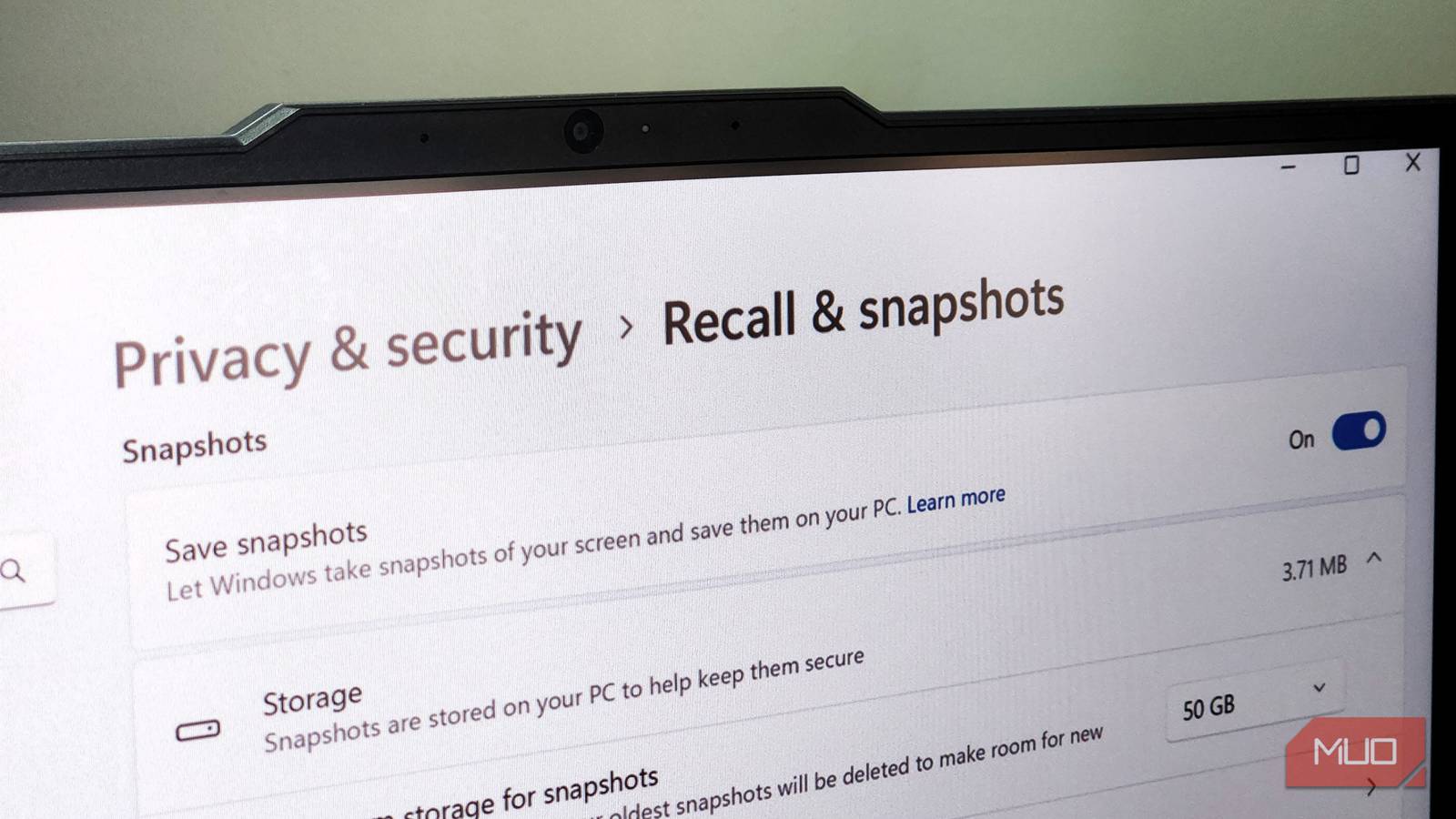
There’s a fine line between convenience and privacy, and Microsoft’s new Windows Recall feature sits right on it. On one hand, it promises to be a game-changing addition to Windows, designed to help you retrace your steps and find anything you’ve previously seen or worked on. It functions similarly to your browsing history, but extends across your entire PC, offering an unprecedented level of recall.
Checking Windows Recall Status: Utilizing the DISM Command
While Microsoft has paused a broader rollout, some users might still have Windows Recall enabled, or simply want to confirm its status. Fortunately, determining this is straightforward using a command-line tool called DISM (Deployment Image Servicing and Management). This method provides a direct way to ascertain whether the controversial feature is active on your system.
Step-by-Step Instructions for Verification
- Firstly, open Command Prompt as an administrator. You can easily locate it by searching “cmd” within the Windows search bar, right-clicking on “Command Prompt,” and then selecting “Run as administrator.”
- Next, type or paste the following command into the Command Prompt window:
DISM /Online /Get-Feature /FeatureName:'Recall'. This command specifically targets the Recall feature for status retrieval. - Finally, press Enter to execute the command; the results will then be displayed within the Command Prompt window.

If the feature is enabled, you’ll see State: Enabled in the output. Conversely, if it’s disabled or not installed, the display will show State: Disabled. Importantly, a third possibility, Not Present, signifies that the feature isn’t even available on your system.
Interpreting Your Windows Recall Status and Potential Implications
The DISM command provides a clear indication of whether Windows Recall is active. Let’s delve into what each possible outcome truly means. Understanding these distinctions is crucial for managing your privacy settings and expectations regarding data collection.
- Enabled: This indicates that Windows Recall is currently running on your system, actively collecting data according to its defined parameters.
- Disabled: With a disabled state, Windows Recall isn’t currently operational on your machine; this could be a deliberate choice or simply due to the feature not yet being rolled out for your specific Windows version.
- Not Present: This outcome suggests that the Windows Recall feature is unavailable for your operating system altogether – a common scenario for older versions of Windows, meaning you likely won’t be able to utilize it.
Even with the rollout delays, knowing how to check this status remains valuable, as Microsoft may eventually reintroduce similar features in future updates. The ability to quickly confirm your system’s Recall state is therefore a useful skill.
The Future of Windows Recall: Balancing Innovation and Privacy
Microsoft has responded to user privacy concerns by adjusting the functionality of Windows Recall. While the core concept remains appealing, they’re demonstrating a clear commitment to ensuring user trust through careful evaluation and implementation. The pause in rollout is notably indicative of this responsible approach.
Ultimately, the future of Windows Recall hinges on Microsoft’s capacity to strike a balance between offering convenient features and maintaining robust privacy protections. This ongoing situation underscores the persistent tension between technological innovation and responsible data handling within modern operating systems, demonstrating why checking your Windows Recall status is increasingly important.
Source: Read the original article here.
Discover more tech insights on ByteTrending.
Discover more from ByteTrending
Subscribe to get the latest posts sent to your email.