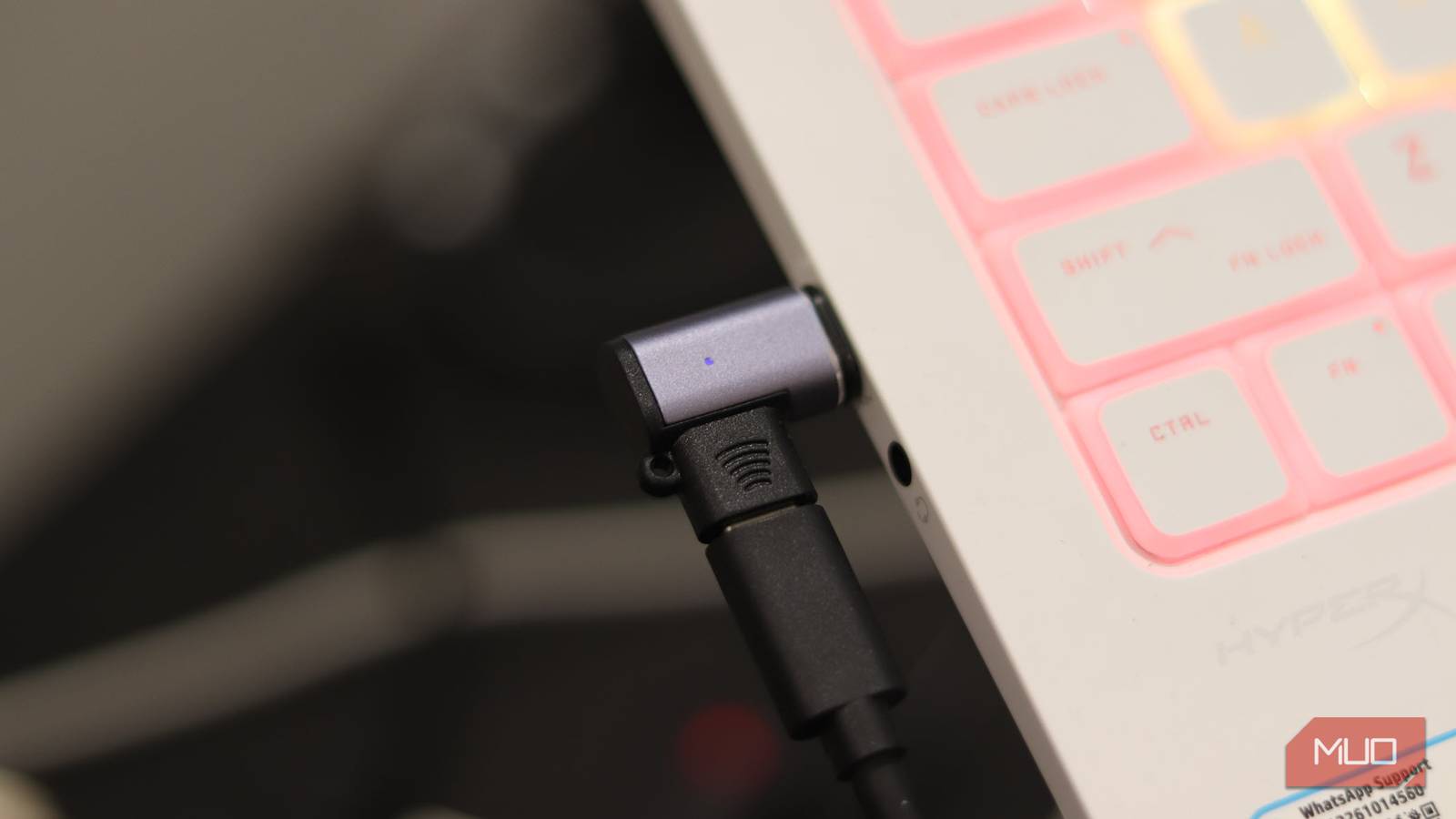

You’d think connecting a cable would be straightforward by now. After all, we’ve spent decades refining USB through its evolving shapes and sizes. Yet somehow, USB-C has managed to transform what should be a simple process into something akin to a guessing game. Two ports can appear identical, sit side by side on a sleek laptop, and still function as entirely different entities.
Understanding the Confusion: USB-C Standards Explained
The core of the problem lies in how USB-C is implemented. Unlike earlier USB versions where speeds were often clearly indicated (like USB 2.0 versus USB 3.0), USB-C is a *connector* type, not a speed standard itself. The connector doesn’t inherently dictate data transfer rates or power delivery capabilities. Instead, these features are determined by underlying protocols like USB 3.1 Gen 1, USB 3.1 Gen 2, USB 3.2, and now USB4. Each generation offers progressively faster speeds—and increased power output. The challenge is that manufacturers aren’t always transparent about which protocol each port supports.
Decoding Port Labels: What to Look For
Ideally, manufacturers would clearly label each port with its supported protocol. However, this isn’t consistently the case. You might see markings like “SS 10Gbps” (SuperSpeed 10 Gigabits per second), indicating USB 3.1 Gen 2 or USB 3.2 Gen 2×1. Similarly, “SS 20Gbps” signifies USB 3.2 Gen 2×2, and “40Gbps” points to USB4. The absence of any label is a significant clue; it most likely means you’re dealing with the slower USB 3.1 Gen 1 (5 Gbps) or even USB 2.0 speeds.
Identifying Faster USB-C Ports: A Practical Guide
So, how do you navigate this complicated landscape? Fortunately, several strategies can assist you in determining the capabilities of a usb-c port. First and foremost, checking the device manual is the most reliable source of information; the manufacturer should clearly state the supported protocols for each port. Furthermore, some manufacturers utilize subtle symbols near ports to indicate their speed class—though these are often small and require close inspection.

- Consult the Device Manual: This remains your primary resource for accurate information.
- Scan for Symbols: Look closely for any markings indicating speed classes.
- Utilize a Speed Meter App: Several free apps can measure USB transfer speeds, offering an indication of port performance.
- Consider Device Tier: High-end devices generally feature faster usb-c ports compared to budget models.

Selecting the Right Cables: Ensuring Optimal Performance
Having a fast port is only half the battle; you also need a cable capable of handling those data transfer rates. A cheap, low-quality cable will inevitably bottleneck even the fastest port. For maximizing speeds, look for cables specifically certified for USB 3.1 Gen 2, USB 3.2, or USB4. These cables often display markings indicating their capabilities. Additionally, when it comes to power delivery (charging your devices), ensure that your chosen cable is rated for sufficient wattage; USB Power Delivery (USB-PD) enables significantly faster charging compared to standard usb.
// Example of a cable certification marking
// Typically found printed on the cable's jacket.
// e.g., "USB 3.2 SF Gen 2x2 Certified"Conclusion: Mastering Your USB-C Experience
The ambiguity surrounding usb-c ports can be frustrating, but understanding the underlying technology and employing a few straightforward steps can help you avoid the “usb-c roulette.” Pay close attention to labels, refer to device manuals, and invest in quality cables. By doing so, you can unlock the full potential of your devices and enjoy a seamless data transfer experience.
Source: Read the original article here.
Discover more tech insights on ByteTrending.
Discover more from ByteTrending
Subscribe to get the latest posts sent to your email.