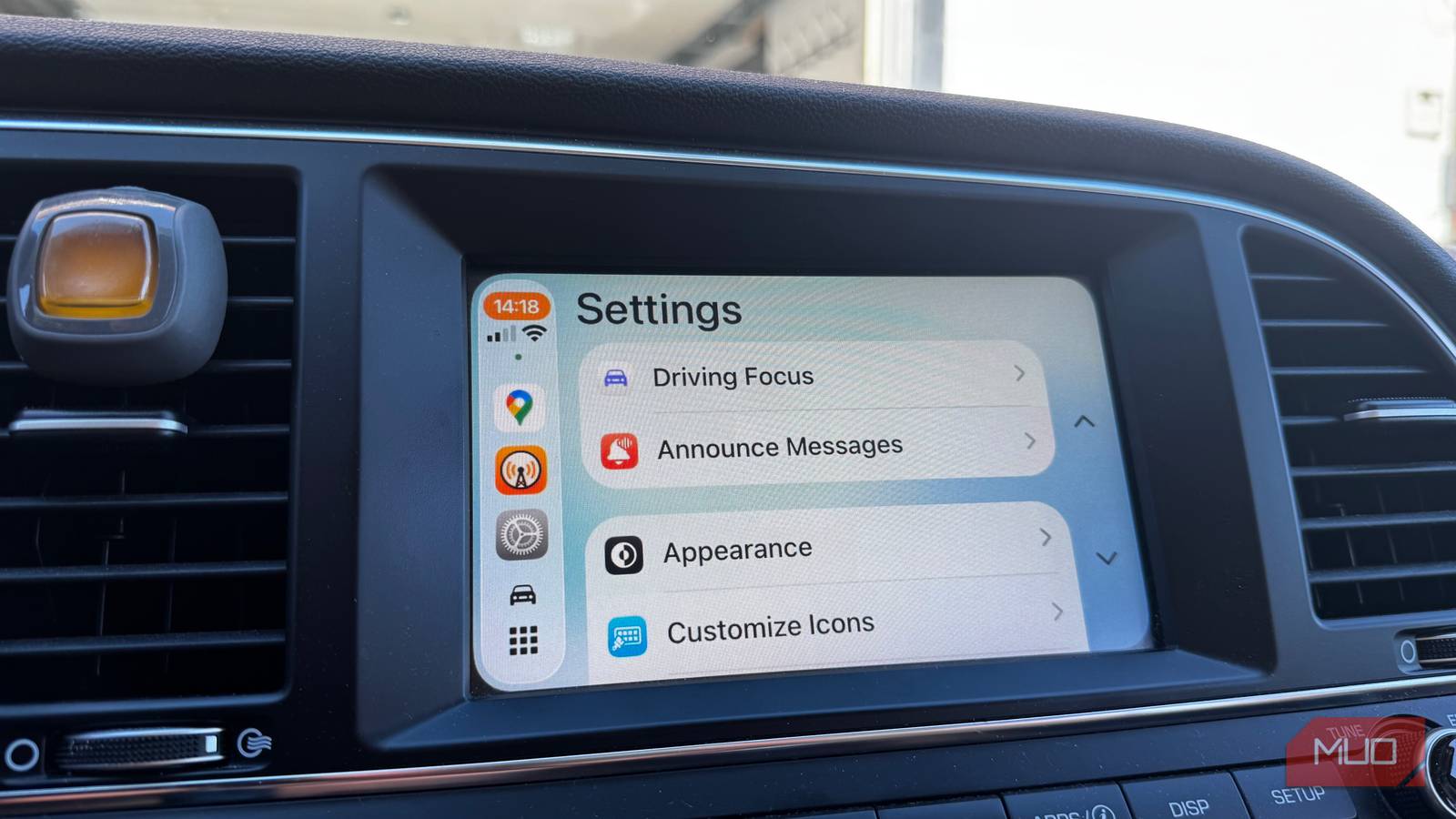


When I bought my car in 2018, I made sure to get a model that supported Apple CarPlay and Android Auto; I’m so glad I did. I use CarPlay nearly every time I drive to enjoy podcasts or music, plus keep navigational directions in front of me. While having CarPlay is fantastic out of the box, there are several tweaks you can implement to truly make it a seamless and personalized driving experience. Over the years, I’ve experimented with different settings and features, resulting in some handy tricks that elevate CarPlay beyond its basic functionality. Here’s how I’ve made Apple CarPlay much better.
1. Customize Your Quick Actions
One of my favorite things about CarPlay is the ability to add shortcuts for your frequently used apps and features directly to the home screen. This eliminates the need to navigate through menus, allowing you to launch your go-to music app or start navigation with just a single tap. Furthermore, customizing these actions can drastically improve efficiency while driving.
- How to do it: From the CarPlay Home Screen, press and hold on an icon until the icons jiggle. Tap the “Customize” button in the bottom left corner. From there, you can add or remove apps from your Quick Actions panel.
2. Utilize Siri Voice Commands
Siri integration is a cornerstone of CarPlay’s usability. Mastering voice commands allows for hands-free operation, which is crucial for safety while driving. While basic commands like “Play music” are useful, explore more advanced options. For example, you can use Siri to send messages or set reminders without taking your hands off the wheel.
- Examples: “Navigate to [address],” “Send a text to [contact] saying [message],” or “Set a reminder for [time].”
3. Optimize Navigation Settings
CarPlay integrates seamlessly with Apple Maps and other navigation apps like Google Maps and Waze. Take some time to customize your preferred routes, traffic alerts, and points of interest. Notably, ensuring accurate routing can save you valuable time during commutes.
- Tip: Check the “Show Traffic” option in CarPlay’s settings for real-time traffic updates during your commute.
4. Leverage Split View
If your car’s display supports it, split view is a game changer. This feature lets you simultaneously see two apps side by side on the screen – perfect for listening to music while following turn-by-turn navigation directions. In addition, this functionality can greatly enhance productivity and enjoyment during longer drives.
- How to enable: Swipe up from the bottom of the CarPlay Home Screen to access the app grid, then long press an icon until it jiggles. Drag the app you want into the split view section on the right side of the screen.
5. Adjust Display Brightness
CarPlay’s display brightness can significantly impact visibility and eye strain, especially during nighttime driving. Ensure the brightness is appropriately adjusted to match your surroundings. Therefore, optimizing this setting contributes to a safer and more comfortable driving experience.
- Tip: Consider enabling automatic brightness adjustment within CarPlay’s settings for optimal viewing in various lighting conditions.
6. Explore Third-Party App Shortcuts
Many third-party apps, like Spotify or Pocket Casts, offer their own custom shortcuts and features within CarPlay. Take some time to explore the capabilities of your favorite apps to unlock additional functionality. Similarly, these integrations can significantly enhance your overall driving experience with CarPlay.
By implementing these simple tweaks, you can transform Apple CarPlay from a basic infotainment system into a truly personalized and efficient driving companion. I’ve found that these small adjustments have made a significant difference in my overall driving experience, making each journey more enjoyable and productive.
Source: Read the original article here.
Discover more tech insights on ByteTrending.
Discover more from ByteTrending
Subscribe to get the latest posts sent to your email.