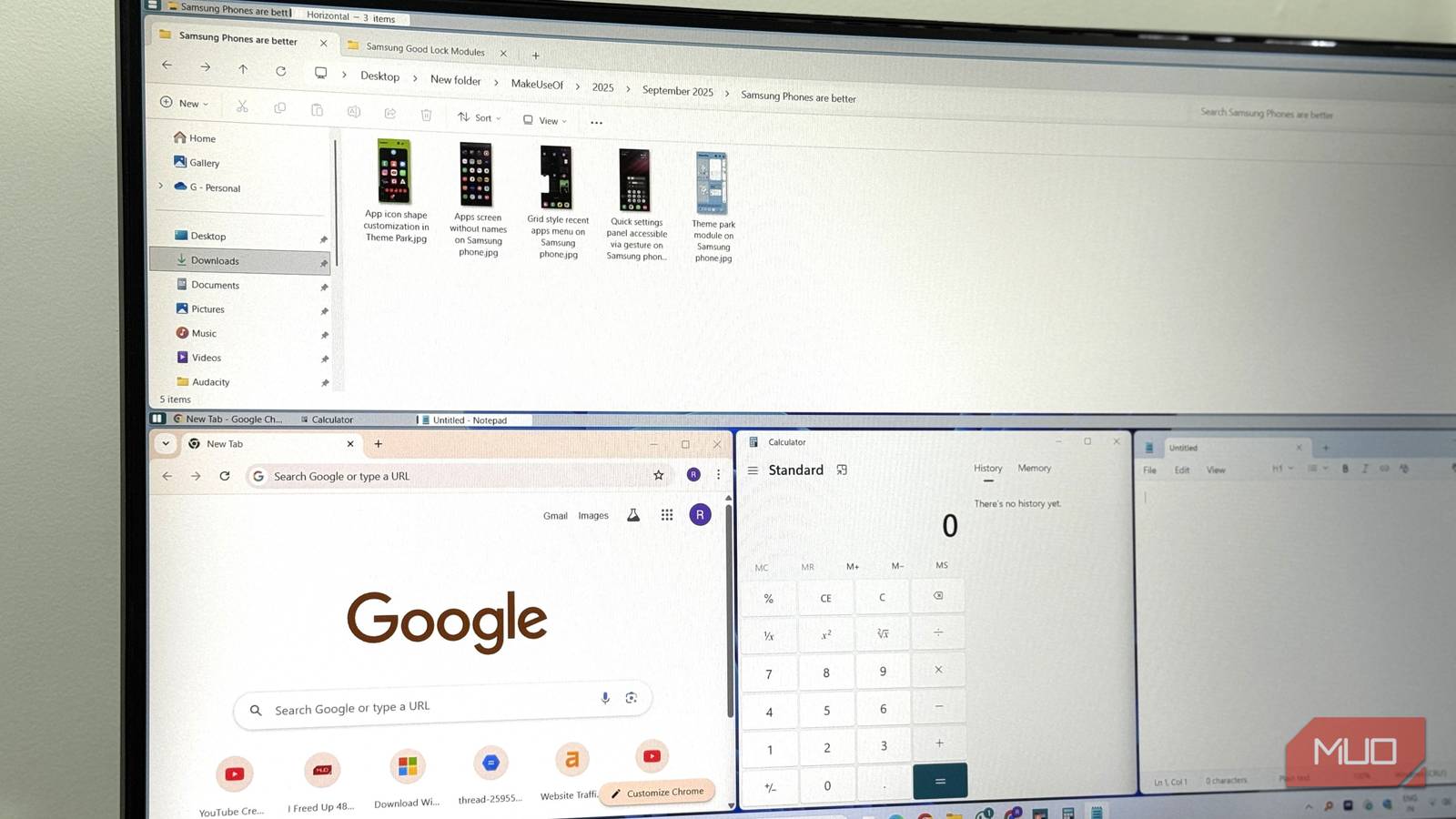


Your monitor might be bigger than ever, but if your windows are still floating around in a chaotic arrangement, you’re likely wasting valuable screen space. I know the frustration firsthand; even on a large display, it’s easy to lose track of open applications and find yourself constantly resizing and rearranging them manually. Fortunately, there’s a solution: FancyWM, a tiling window manager that can revolutionize your Windows workflow.
Introducing FancyWM: A Tiling Window Manager for Windows
FancyWM is an open-source project bringing the power of tiling window management to Windows users. If you’re unfamiliar with this concept, tiling window managers automatically arrange application windows in a non-overlapping layout, maximizing screen real estate and boosting productivity. Forget about tedious manual resizing; FancyWM handles it all for you, creating an organized and efficient workspace.
What is Tiling, and Why Should You Care?
Traditional desktop environments, such as Windows’ default setup, utilize floating window management where windows can overlap and be positioned freely. Consequently, this often results in a cluttered screen and wasted space. Conversely, tiling window managers arrange windows in a grid-like structure, ensuring each window occupies a defined area without overlaps. This approach offers several key advantages.
- Increased Productivity: You’ll spend less time organizing windows and more time focusing on the tasks at hand.
- Optimized Screen Space: FancyWM allows you to utilize every inch of your monitor’s real estate effectively.
- Keyboard-Centric Workflow: Tiling managers are often controlled via keyboard shortcuts, which can significantly streamline your workflow and increase efficiency; consequently, this reduces mouse usage.
Getting Started with FancyWM
Setting up FancyWM is surprisingly straightforward; it’s a portable application, meaning no installation process is required. Here’s a brief guide to get you started:
- Download: Head over to the FancyWM GitHub repository and download the latest release, typically a .zip file.
- Extract: Unzip the downloaded file into your preferred location on your computer.
- Run: Double-click
FancyWM.exeto launch the application; furthermore, this initiates the tiling window management process. - Configuration: FancyWM utilizes a configuration file (
config.txt) to define layout rules. You can either edit this file directly or leverage the built-in editor accessible through keyboard shortcuts once the application is running.

Customizing Your Layout
The true power of FancyWM lies within its customization options. You can define layouts for specific applications, precisely specify window sizes and positions, and even create custom keyboard shortcuts to further optimize your workflow. The config.txt file employs a straightforward syntax to define these rules.
# Example config.txt entry
[layout:dev]
  application = "Chrome";
  orientation = "horizontal";
  width = 50%;
  height = 100%;
This example demonstrates a layout named “dev” specifically tailored for Chrome, arranging it horizontally and occupying 50% of the screen width. Experimenting with different configurations is key to finding a workflow that precisely suits your individual needs.
Beyond the Basics: Advanced Features
FancyWM offers more than just basic tiling functionality; it provides several advanced features designed to enhance usability and efficiency. For instance, it includes:
- Multiple Monitors Support: Easily manage windows across multiple displays, ensuring a cohesive and organized desktop experience.
- Persistent Layouts: Save your customized layouts and automatically restore them when you launch FancyWM, saving time and effort.
- Application-Specific Rules: Define distinct tiling rules for individual applications, tailoring the window management to specific workflow requirements.
While a learning curve is involved in mastering the configuration file syntax, the benefits of a streamlined and efficient workflow are undoubtedly worth the initial investment.
Conclusion: Reclaim Your Screen Space
If you’re feeling frustrated with window clutter and manual resizing, FancyWM provides an excellent solution. It’s a free and open-source tool that can significantly enhance your productivity and maximize screen utilization. Therefore, give it a try – you might be surprised at how much more organized and efficient you can become!
Source: Read the original article here.
Discover more from ByteTrending
Subscribe to get the latest posts sent to your email.