
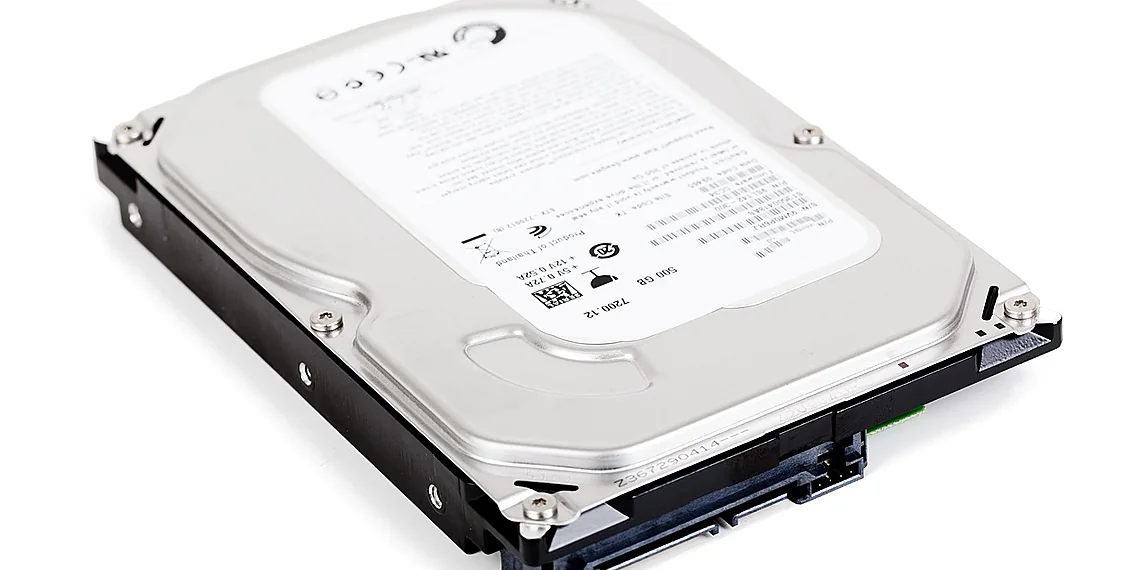
A few months ago, I opened my downloads folder to search for a file, and it froze. It was a complete mess. Screenshots, invoices, installers, and random PDFs were all jumbled together, and it was taking up more than 80 GB of storage space, which is a lot.
The Problem: A Download Folder Disaster
We’ve all been there. The downloads folder becomes a digital dumping ground for everything we download from the internet. It quickly spirals out of control, making it difficult to find specific files when you need them. This isn’t just an aesthetic issue; a cluttered downloads folder can slow down your computer and waste valuable storage space. Furthermore, attempting to navigate through such a disorganized system consumes precious time that could be spent on more productive tasks.
Discovering Windows’ Hidden Download Organization Feature
Fortunately, Microsoft has quietly added a feature to Windows that automatically organizes downloaded files into subfolders based on file type. This is a game-changer for anyone struggling with a chaotic downloads folder. The automatic organization system truly simplifies the user experience.
Here’s how it works:
- Automatic Sorting: Windows now creates folders like ‘Pictures’, ‘Documents’, ‘Music’, ‘Videos’, ‘Archives’, and ‘Executables’ within your downloads directory.
- File Type Recognition: When you download a file, Windows automatically determines its type (e.g., .jpg, .docx, .zip) and places it in the corresponding folder. Consequently, users no longer need to manually categorize their files.
- Seamless Operation: This feature operates silently in the background, so you don’t need to configure anything manually. It just works! For example, a downloaded PDF will automatically be placed within the ‘Documents’ folder.
This functionality is available on recent versions of Windows 10 and Windows 11.
Benefits Beyond a Tidy Folder
The advantages of this automatic organization extend beyond mere tidiness: Notably, the feature enhances overall efficiency.
- Improved File Management: Finding specific files becomes much easier when they’re neatly categorized. Similarly, locating important documents or installers is significantly faster and more convenient.
- Reduced Clutter: The downloads folder remains manageable, preventing it from becoming an overwhelming digital mess. Therefore, users can avoid the frustration of sifting through countless files to find what they need.
- Storage Space Optimization: While the feature itself doesn’t directly free up space, a more organized folder makes it easier to identify and delete unnecessary files. As a result, you’re better able to manage your storage capacity.
- Enhanced Productivity: Less time spent searching for files means more time focused on what matters. In addition, this small change can contribute to a noticeable increase in overall productivity.
It’s surprising that this wasn’t implemented sooner!
Reclaiming My Storage Space
After enabling this feature (it’s generally enabled by default, but can be toggled in settings), I was able to quickly identify and delete a significant number of old installers and duplicate files from my downloads folder. This freed up over 60 GB of storage space – a substantial amount! Consequently, my computer now runs noticeably faster.
Conclusion: A Small Change with Big Impact
Windows’ automatic download organization feature is a small but incredibly useful addition to the operating system. It’s a simple solution to a common problem, and it can significantly improve your overall computing experience. If you haven’t already noticed it, take a look at your downloads folder – you might be surprised by how well-organized it is!
Source: Read the original article here.
Discover more tech insights on ByteTrending.
Discover more from ByteTrending
Subscribe to get the latest posts sent to your email.