

Discover Hidden Windows Features to Boost Your Productivity
Even if you’ve used a Windows PC for years, there are features that are surprisingly easy to miss. Honestly, I wouldn’t blame you. Some of these tools aren’t talked about enough, either because they’re tucked away in settings or simply overshadowed by more popular apps. Learning how to effectively use these hidden windows tools can dramatically improve your daily workflow and overall computing experience.
Let’s uncover eight such gems that can significantly improve your Windows experience – features I wish I had started using much earlier!
1. Storage Sense: Automated Disk Space Cleanup
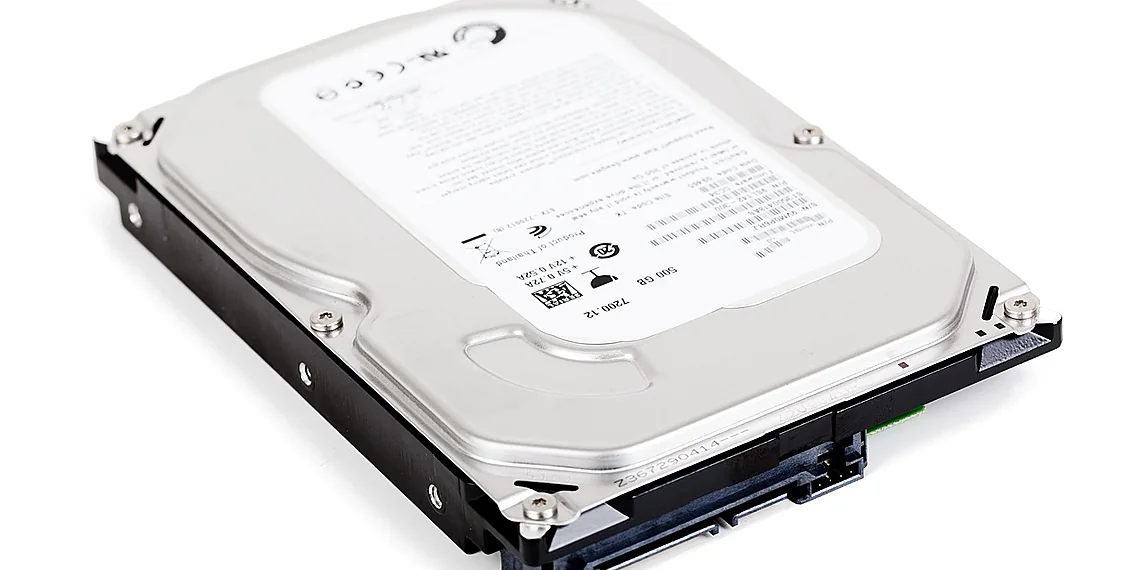
Running out of disk space is a common frustration. Thankfully, windows 10 and 11 have Storage Sense, an automated cleanup tool. It can delete temporary files, manage downloads folder content, and even remove older versions of apps – all without you lifting a finger. This feature helps maintain system performance and prevents frustrating low-disk-space errors.
How to Use: Go to Settings > System > Storage and toggle Storage Sense on. Customize its settings for automatic cleanups based on your preferences. For instance, you can set it to automatically delete files in the Downloads folder after a certain period. This is especially helpful if you have limited storage or want to keep things tidy.
2. Dynamic Thumbnail Previews: Visual File Recognition
Ever noticed that some folders show static icons while others display previews of the files inside? Dynamic Thumbnail Previews can be a lifesaver when browsing image and video collections, giving you instant visual recognition without double-clicking. This is particularly useful for photographers or anyone dealing with large media libraries.
How to Use: If they’re disabled, open File Explorer, click View > Options > Change folder and search options. Go to the View tab and make sure “Show dynamic previews” is checked. This setting can dramatically improve navigation through large media folders.
3. Shake to Minimize: Quick Window Management
Windows has a surprisingly useful shortcut for managing open windows: Shake to Minimize. It allows you to quickly minimize all but the active window with a simple shake of its title bar, providing swift control over your workspace. It’s a neat trick that can save you valuable time and clicks.
How to Use: Simply click and rapidly shake a window’s title bar. All other open windows will instantly minimize, leaving only the shaken one visible. To restore them, just shake the minimized window.
4. Clipboard History: Expanding Copy-Paste Capabilities
The standard clipboard only stores your last copied item. Clipboard History (introduced in windows 10) saves a log of everything you’ve copied, allowing you to paste from previous selections. This is incredibly useful for research, writing, or coding, particularly when dealing with multiple data points or complex text.
How to Use: Press Windows Key + V to open the Clipboard History panel. You can pin frequently used items and clear entries as needed. Note that this feature needs to be enabled in settings (Settings > System > Clipboard).
5. Focus Assist: Eliminating Digital Distractions
Focus Assist is your digital sanctuary, blocking notifications so you can concentrate on the task at hand. It has three modes: Off, Priority Only, and Alarms Only. This feature helps improve productivity by minimizing interruptions.
How to Use: Access it via the Action Center (Windows Key + A) or through Settings > System > Focus Assist. Customize your priority list for important contacts and apps so you don’t miss critical notifications.
6. Timeline: Revisiting Your Digital Past
Timeline provides a visual history of your recent activity, allowing you to quickly jump back to where you left off in documents, websites, or applications. It’s like a personal time machine for your digital life and is an often-overlooked feature within the windows ecosystem.
How to Use: Click the Timeline icon on the taskbar (or press Windows Key + Tab). You can filter by day, week, or month, making it easy to find exactly what you’re looking for.
7. Steps Recorder: Troubleshooting Made Easy
Having trouble reproducing a bug or explaining an issue to tech support? The Steps Recorder automatically captures every action you take, creating a detailed log with screenshots. This feature is incredibly valuable for diagnosing and resolving technical problems.
How to Use: Search for “Steps Recorder” in the Start menu and run it. Follow the steps that reproduce the problem, then save the resulting recording – this will be invaluable for troubleshooting.
8. Virtual Desktops: Organizing Your Workflow
Need more space or want to separate work from personal tasks? Virtual Desktops let you create multiple desktops within windows, each with its own set of apps and windows. This allows for better organization and a cleaner workspace.
How to Use: Press Windows Key + Tab to open Task View. Click “New desktop” to create a new virtual desktop. Switch between desktops using the same shortcut or by clicking on them in Task View.
These are just a few of the hidden gems windows has to offer. By taking a little time to explore these features, you can transform your PC experience and boost your productivity!
Source: Read the original article here.
Discover more tech insights on ByteTrending.
Discover more from ByteTrending
Subscribe to get the latest posts sent to your email.