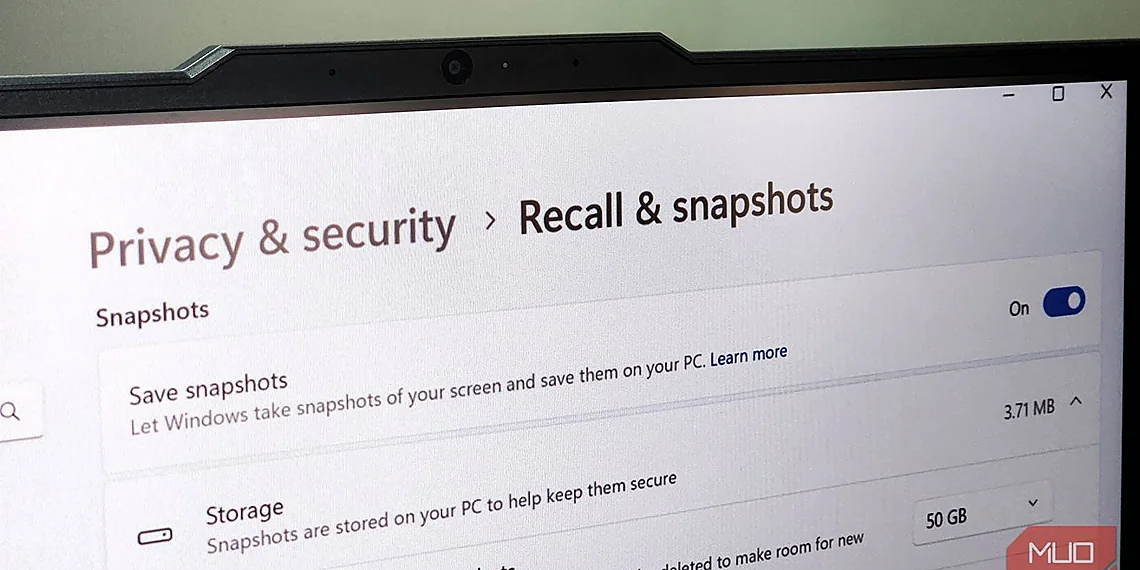

The tech world has been buzzing lately, and for good reason – Microsoft’s latest innovation, Windows Recall, has arrived, albeit in a somewhat chaotic fashion. It promises to revolutionize how we find information on our PCs by automatically capturing screenshots and storing them, essentially creating a searchable history of everything you see. This ambitious feature aims to provide a powerful shortcut to lost files, forgotten websites, or simply recalling what you were working on moments ago. But the initial rollout has been anything but smooth, leaving many users wondering if they even have it enabled.
Confusion reigns supreme as reports flood in about inconsistent availability. For some, Windows Recall is active by default, while others find it completely absent from their system settings. This uneven distribution has fueled speculation and frustration across online forums and social media platforms. Is it a regional rollout? A hardware limitation? Or something else entirely? The lack of clear communication from Microsoft hasn’t helped to quell the uncertainty.
That’s precisely what we’re here to unpack. This article serves as your definitive guide to understanding Windows Recall, demystifying its functionality, and most importantly, checking whether it’s actually running on *your* machine. We’ll cut through the noise and provide a straightforward process for verifying your status, so you can finally put an end to the ‘Is It On?’ debate.
Understanding Windows Recall: What It Is & Why It Matters
Windows Recall is Microsoft’s ambitious new feature designed to create a searchable timeline of everything you do on your PC – essentially, a persistent snapshot of your digital activity. Imagine being able to instantly recall what website you were browsing last Tuesday afternoon or the specific document you were editing a week ago. That’s the promise of Recall. It works by periodically taking screenshots and gathering data about open applications, documents, and web pages, then storing this information in a secure database on your device. This isn’t just about static images; it aims to provide context – allowing you to search not just for keywords within those snapshots but also by date, time, or even application used.
The core functionality revolves around frequent, automated screenshots and metadata collection. Every few seconds (the exact frequency is still being refined), your PC captures a visual representation of what’s on screen. This isn’t a full system backup; it’s more like a detailed journal entry. These snapshots are then indexed alongside data about the applications you were using at the time, allowing for powerful search capabilities. For example, searching ‘presentation July 15th’ might surface the specific application used, the document opened, and even a visual snapshot of what was displayed on your screen – all without needing to remember file names or folder locations.
Understandably, the introduction of Windows Recall has sparked significant privacy concerns. Microsoft acknowledges this and emphasizes that the feature is opt-in and stored locally on the user’s device (with some cloud functionality planned for future iterations). Users have control over how long these snapshots are retained – you can choose to keep them for days, weeks, or even months. However, it’s crucial to understand that while data resides primarily locally, Microsoft retains access for diagnostic and improvement purposes; a point which remains a key area of user debate. Microsoft’s reasoning behind Recall is rooted in improving productivity and ease of use – aiming to alleviate the common frustration of forgetting where you saved something or what website you were researching.
The introduction of Recall also ties into Microsoft’s broader strategy with Copilot, their AI assistant. While not directly integrated at launch, the potential for Recall to feed information to Copilot for more intelligent assistance is clear – imagine asking Copilot ‘What was I working on related to project X last week?’ and it instantly surfaces relevant documents and screenshots from your Recall history. Ultimately, Windows Recall represents a significant shift in how we interact with our PCs, blurring the lines between short-term memory and digital record keeping, but also demanding careful consideration of privacy implications.
How Recall Works: A Simplified Explanation

Windows Recall aims to create a searchable history of everything displayed on your screen. It works by periodically taking screenshots – Microsoft initially stated every few seconds but has since clarified this is adjustable and can be configured, with the frequency impacting storage needs. These aren’t full-screen captures necessarily; they are snippets captured based on what’s visible in each window. The system then uses AI to index these snapshots, allowing you to search for specific content using keywords or phrases.
The screenshots themselves are stored locally on your device, encrypted and protected by your Windows login credentials. Microsoft designed Recall with the intention of providing a powerful tool for quickly finding information – whether it’s a forgotten website address, a quote from a document, or an image seen briefly during a video call. This functionality is meant to enhance productivity and reduce reliance on manual note-taking or browser history searching.
Users can control how often Recall captures screenshots and also have the option to clear their Recall history completely. There are settings to exclude specific applications from being captured, providing some level of customization regarding privacy. While Microsoft emphasizes the local storage and encryption, concerns about data security and potential misuse remain a key point of discussion surrounding this new feature.
Checking Your Windows Recall Status: The DISM Command
Windows Recall has been generating considerable buzz, and understandably so. This new feature promises a revolutionary way to access your computer’s history – essentially, a searchable timeline of everything displayed on your screen. However, its rollout has been staggered, leaving many Windows 11 users wondering: is it actually *on* for me? While Microsoft’s official channels provide some information, there’s a straightforward command-line method you can use to definitively check your Recall status, and this guide will walk you through it.
The key to determining whether Windows Recall is enabled lies in using the Deployment Image Servicing and Management (DISM) tool within PowerShell. Don’t let the technical jargon intimidate you; the process itself is surprisingly simple. This method bypasses any ambiguity from Microsoft’s broader announcements, giving you concrete confirmation. We’ll break down each step to ensure even users with limited command-line experience can successfully execute this check and understand the results.
To begin, you’ll need to open PowerShell as an administrator. You can do this by searching for ‘PowerShell’ in the Windows search bar, right-clicking on the result, and selecting ‘Run as administrator.’ Once PowerShell is open, type (or copy and paste) the following command precisely: `DISM /Online /Get-Feature /FeatureName:
Step-by-Step: Using DISM to Verify
To definitively confirm whether Windows Recall is active on your system, you can utilize a built-in Deployment Image Servicing and Management (DISM) command within PowerShell. This method bypasses any potentially misleading UI indicators and provides concrete information directly from the operating system. Before proceeding, it’s crucial to understand that this feature rollout has been gradual; therefore, even if you meet the initial eligibility requirements, activation may still be pending.
First, you’ll need to open PowerShell as an administrator. To do this, search for ‘PowerShell’ in the Windows search bar, right-click on the ‘Windows PowerShell’ app icon, and select ‘Run as administrator.’ This elevated permission level is essential for the DISM command to execute correctly. Once PowerShell is opened, carefully type or copy and paste the following command: `DISM /Online /Get-Feature /FeatureName:Recall`. Pay close attention to spacing; incorrect syntax will result in an error.
After entering the command and pressing Enter, PowerShell will process the request and display output indicating whether Windows Recall is enabled. A successful check will show ‘State : Enabled’. If Recall is not yet active, you’ll see ‘State : Disabled’. The output might also include additional details about the feature’s status. Keep in mind that a ‘Disabled’ state doesn’t necessarily mean the feature is unavailable; it could simply indicate that activation hasn’t been pushed to your system yet.
Beyond the Command: Alternative Methods & Considerations
While the `Get-Recall` PowerShell command remains the primary method for gauging Windows Recall’s activation status, its behavior has been somewhat inconsistent during Microsoft’s phased rollout – leading many users to question whether it’s truly ‘on’ even when the command suggests so. Beyond this direct query, there aren’t officially supported alternative methods provided by Microsoft to definitively confirm Recall’s operational state. However, observing system performance and resource utilization can offer indirect clues. Increased disk I/O or CPU activity, particularly during startup or background processes, *could* indicate Recall is actively indexing your activities, though these are not definitive indicators as other Windows features also contribute to such usage.
The implications of a feature like Recall extend far beyond a simple ‘on’ or ‘off’ switch. Its impact on system performance is a significant consideration; the continuous indexing and storage of screen recordings, text snippets, and application activity inherently demands resources. Users with older hardware or limited storage space may experience noticeable slowdowns or increased disk wear. Moreover, the privacy risks are substantial. Microsoft has emphasized local processing and encryption, but any system that persistently records user activity creates a potential vulnerability – especially if data is compromised or accessed without authorization. The ongoing adjustments to the rollout reflect Microsoft’s awareness of these concerns and their commitment to refining the feature’s implementation.
Microsoft’s recent adjustments to Recall’s deployment clearly demonstrate a cautious approach, initially limiting availability based on hardware specifications and geographic regions. This phased release allows them to gather user feedback, address performance bottlenecks, and refine privacy controls before wider adoption. It is crucial for users to remain informed about these changes, as the functionality and impact of Recall may evolve significantly over time. Continued monitoring of system behavior and staying abreast of official Microsoft communications are vital for understanding how Recall affects your individual Windows 11 experience.
Ultimately, while the `Get-Recall` command provides a starting point, a holistic assessment of Recall’s presence involves observing overall system performance, being mindful of potential privacy implications, and tracking Microsoft’s ongoing adjustments. Remember to consult Microsoft’s official documentation and community forums for the most up-to-date information and troubleshooting guidance, especially if you encounter unexpected behavior or have concerns about your data security.
Troubleshooting & Further Investigation
Verifying your Windows Recall status isn’t always straightforward, and users often encounter issues with the initial command prompt syntax. The primary method involves opening a PowerShell window (search for ‘PowerShell’ in the Start menu) and typing `Get-RecallConfiguration`. Pay close attention to capitalization – it’s crucial! Incorrect spelling or using the Command Prompt instead of PowerShell will result in errors or misleading information. If you receive an error message, double-check your command input and ensure you are running PowerShell as an administrator (right-click the PowerShell icon and select ‘Run as administrator’).
Unexpected output from `Get-RecallConfiguration` can be confusing. A ‘State’ value of ‘Enabled’ indicates Recall is active, while ‘Disabled’ means it’s not. However, a ‘NotSupported’ state signifies that your hardware or Windows version doesn’t meet the requirements for Recall functionality – this is common in older systems or those with specific configurations. Even if Recall appears enabled, it might be limited by your settings or Microsoft’s phased rollout approach. Microsoft has indicated that certain regions and system configurations are still being targeted for full Recall availability.
For more advanced troubleshooting, consult the official Microsoft documentation on Windows Recall (search ‘Windows Recall’ on microsoft.com). This resource provides detailed information about requirements, privacy considerations, and known issues. Additionally, community forums like Reddit’s r/Windows11 offer valuable insights and solutions shared by other users experiencing similar problems. Remember that Microsoft is actively refining Recall; updates may alter the command syntax or functionality in future Windows builds.
The Future of Recall: Privacy & Potential Evolution
The initial rollout of Windows Recall has been… complicated, to say the least. While Microsoft’s ambition – a continuously searchable record of everything on your screen – is undeniably compelling, the immediate user response and subsequent privacy concerns have forced a reevaluation. Looking ahead, it’s clear that the future of Recall hinges not just on technical refinement but also on how Microsoft addresses these anxieties and adapts to evolving user expectations. We’re unlikely to see Recall vanish entirely; instead, expect a period of significant iteration as Microsoft attempts to strike a balance between functionality and trust.
One key area for potential evolution is granular control over data retention. Currently, the default timeframe (30 days) feels inflexible for many users. Future versions could offer tiered options – perhaps allowing users to designate specific applications or folders that are excluded from Recall entirely, or providing more precise scheduling controls beyond just a blanket daily reset. Imagine being able to specify ‘Recall only records work-related apps during business hours’ – this kind of customization would dramatically improve user adoption and alleviate some privacy worries. Microsoft’s commitment to transparency will also be crucial; clearer explanations regarding data storage locations and processing methods are paramount.
Beyond simple adjustments, we could see Recall deeply integrated with other Microsoft services. Imagine seamless integration with Copilot, allowing AI-powered summarization or contextual information directly from your Recall history. This kind of synergy would elevate Recall beyond a mere search tool into an active assistant, but it also introduces new privacy considerations that Microsoft will need to proactively address – ensuring users are fully aware of how their data is being utilized and have complete control over sharing permissions. The potential for proactive suggestions based on past activity could be incredibly powerful, but only if handled responsibly.
Ultimately, the success of Windows Recall’s future depends on rebuilding user confidence. Microsoft needs to demonstrate a genuine commitment to privacy – not just through technical safeguards, but also through clear communication and empowering users with meaningful control over their data. If they can achieve this, Recall could genuinely revolutionize how we interact with our computers; if not, it risks becoming another cautionary tale of ambitious features outstripping user comfort and trust.

So, as we’ve explored, the rollout of Windows Recall is happening gradually and regionally, meaning whether you have access to it right now depends largely on your location and Windows 11 version.
Checking your status is straightforward: simply navigate to Settings > Windows Recall to see if the toggle is available – a clear indicator of its presence on your system.
It’s crucial to remember that with any feature involving stored data, understanding the privacy implications is paramount, and Windows Recall is no exception; Microsoft’s transparency around data storage and security should be continuously reviewed as the feature matures.
Microsoft continues to refine and expand access to features like Windows Recall, so staying informed about their updates through official channels and reputable tech sources will ensure you’re always up-to-date on its evolution and any associated changes or improvements to privacy controls. The future of this technology hinges on user feedback and Microsoft’s responsiveness to it, shaping its long-term viability and utility for everyone involved in the Windows ecosystem. We anticipate further refinements based on initial user interactions and ongoing security assessments as well, so keep an eye out for announcements regarding broader availability and feature enhancements. Ultimately, informed users are empowered users, allowing them to make the best decisions about incorporating new technologies into their daily workflows and protecting their digital footprint effectively..”, 1,
Continue reading on ByteTrending:
Discover more tech insights on ByteTrending ByteTrending.
Discover more from ByteTrending
Subscribe to get the latest posts sent to your email.