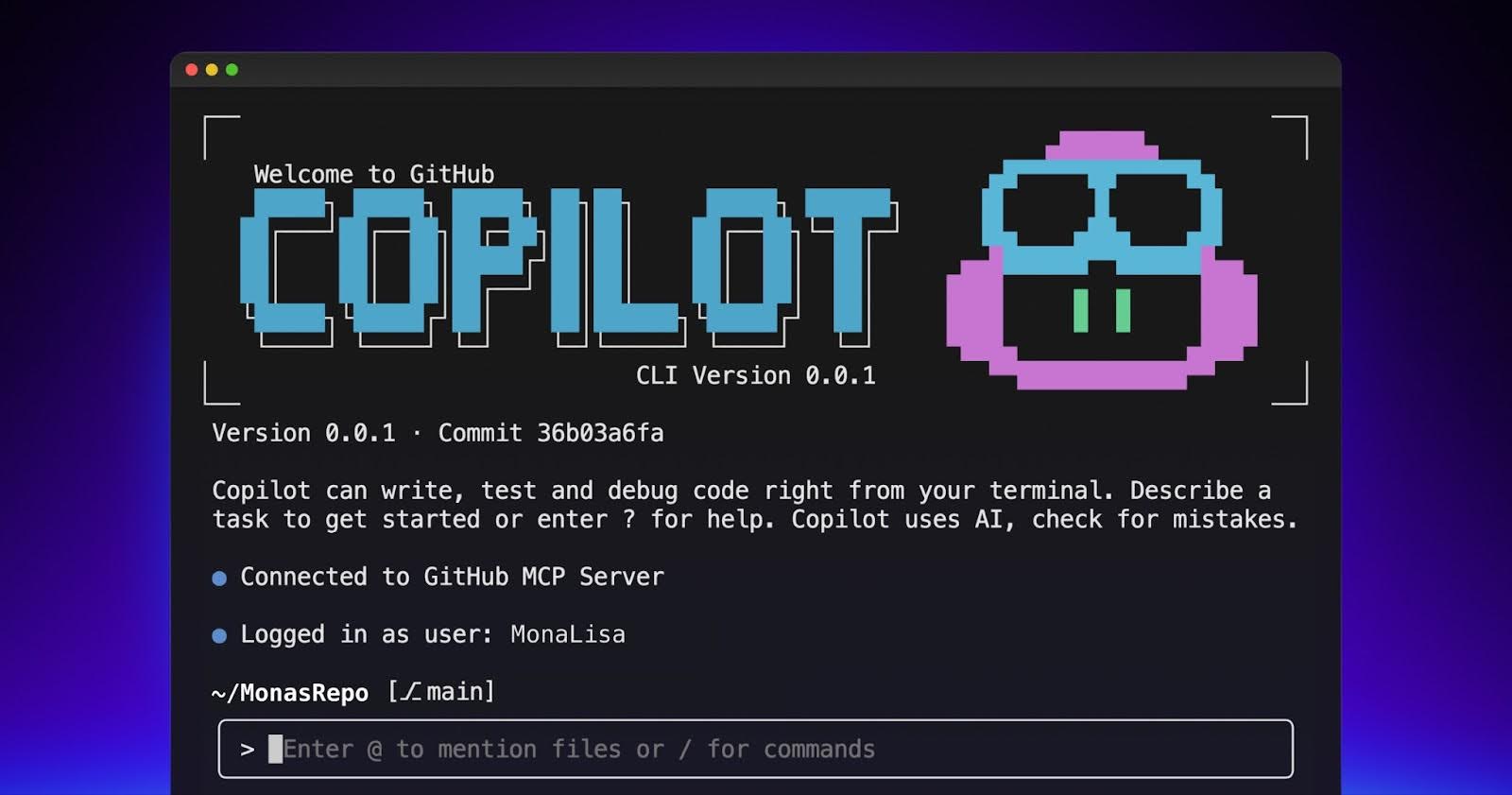

As a developer, you’re likely already comfortable navigating the command line interface (CLI). You routinely clone repositories, manage dependencies, debug code, and execute builds—all within your terminal environment. Traditionally, seeking AI assistance meant disrupting this workflow by switching to an editor or browser window. However, that paradigm shifts with the introduction of GitHub Copilot CLI, bringing AI assistance directly to your shell and streamlining your development process.
The GitHub Copilot CLI fundamentally changes how developers interact with AI tools, removing the need for context switching and maintaining flow seamlessly. This powerful tool empowers you to leverage AI capabilities without ever leaving your terminal, significantly improving productivity.
Getting Started: Installation, Authentication, and Immediate Use
Setting up the GitHub Copilot CLI is remarkably straightforward. Unlike traditional tools requiring complex configurations, the Copilot CLI prioritizes ease of use. Simply install the assistant once, authenticate with your existing GitHub Copilot Pro, Pro+, Business, or Enterprise plan, and you’re ready to begin leveraging its capabilities.
Installation Process
# 1. Install via npm
npm install -g @github/copilot

# 2. Launch Copilot CLI
copilot

# Authenticate with your GitHub account
/login
Before you can start using the GitHub Copilot CLI, ensure your environment meets the following requirements: Node v22+ and npm version 10 or later. Following installation, launch the CLI and authenticate with your GitHub account to unlock its full potential.


Essential Commands & Navigation
Once authenticated, you can immediately start leveraging the GitHub Copilot CLI for debugging tests, creating preview deployments, and writing custom scripts—all without leaving your terminal. To explore available commands within the CLI, simply type `/` at any time. Furthermore, using Ctrl+R displays a log of previously executed commands, providing valuable context and assistance.
Streamlining Contributions: From Cloning to Pull Request
Consider this scenario: you’ve just cloned a repository with the intention of contributing. Traditionally, this involves significant upfront effort—reading extensive README files, manually verifying dependencies, and identifying suitable areas for contribution. The GitHub Copilot CLI dramatically reduces this overhead by automating several key steps.
Cloning and Initial Setup
gh repo clone github/spec-kit
cd spec-kit
copilot
After cloning the repository, launching Copilot CLI provides immediate assistance. The assistant greets you within the terminal, offering readily available commands and support. For example, typing `/` displays a menu of options while Ctrl+R allows review of previously executed actions.
Understanding Project Structure
A critical first step when contributing to a new codebase is understanding its structure. Instead of manually navigating files or attempting to decipher information from the README, leverage Copilot CLI to generate a clear and concise Markdown summary of the project layout. You can prompt it with: Explain the layout of this project. This feature significantly accelerates onboarding and reduces the learning curve.
Environment Verification
Ensuring your development environment is properly configured is crucial before beginning work on a new project. The GitHub Copilot CLI can assist with this process, automating dependency checks and identifying potential compatibility issues. This proactive approach prevents frustrating roadblocks down the line and ensures a smooth development workflow.
Conclusion: Embracing AI Integration in Your Workflow
The GitHub Copilot CLI represents a significant advancement in developer tooling, seamlessly integrating artificial intelligence into your command-line workflows. From streamlining contributions to simplifying codebase understanding, the GitHub Copilot CLI empowers developers to be more productive and efficient. As AI continues to evolve, the ability to integrate it directly into your development environment will become increasingly essential, making tools like this invaluable assets for modern software engineering teams.
Source: Read the original article here.
Discover more tech insights on ByteTrending.
Discover more from ByteTrending
Subscribe to get the latest posts sent to your email.