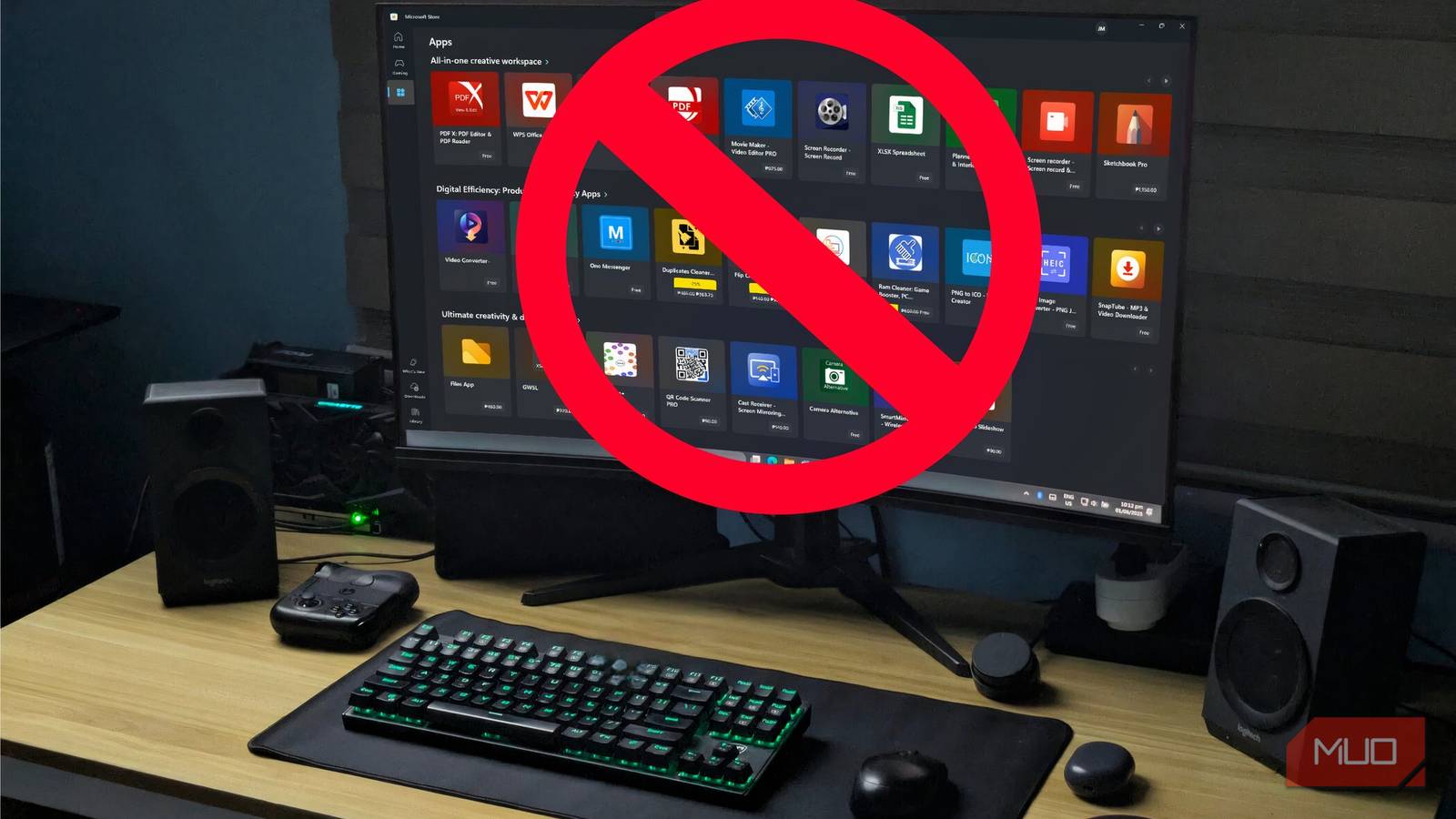

Installing applications on Windows has often been a frustrating experience for many users, involving searching multiple websites and navigating complex installers. While the Microsoft Store offers some convenience, it doesn’t cover everything—leading to potential security risks and unwanted software. Fortunately, there’s now a powerful alternative: Winget, Microsoft’s command-line package manager, offering a streamlined and secure way to manage your applications.
What is Winget? A Modern Approach to Windows App Management
Winget (Windows Package Manager) provides a command-line interface for discovering, installing, updating, and removing software on Windows. Similar to apt on Linux or Homebrew on macOS, it simplifies the process of obtaining applications without relying solely on the Microsoft Store or manual downloads. As a result, you can avoid potentially unsafe websites and streamline your application management workflow.
Understanding Winget’s Core Functionality
Fundamentally, Winget operates using manifests – standardized files describing an application’s details, including its version, download location, and more. These manifests are hosted across various repositories, providing a curated catalog of available software. This approach ensures consistency and simplifies the installation process, unlike the often-disorganized nature of traditional software downloads.
Getting Started with Winget: A Simple Guide
The best part about Winget is that it’s already integrated into recent versions of Windows (Windows 10 version 1709 and later, and Windows 11), eliminating the need for extra downloads. To begin using winget, open either the Command Prompt or PowerShell.

Essential Winget Commands
- Searching for Apps: Use `winget search ` to find applications. For example, `winget search vlc` will display results related to VLC media player.
- Installing an App: Install an application by using the command `winget install `. The package ID is usually found in the search results (e.g.,
VideoLAN.VLC). - Updating Apps: Keep your software current with `winget upgrade –all` to update all managed applications, or use `winget upgrade ` for individual updates.
- Uninstalling Apps: Easily remove unwanted programs using the command `winget uninstall `.

Why Choose Winget? Advantages Over Traditional Methods
Winget offers several significant advantages compared to the traditional methods of downloading and installing software on Windows. For instance, it significantly improves security by sourcing applications from trusted repositories. Furthermore, its centralized management simplifies application administration.
- Enhanced Security: Winget prioritizes secure downloads, minimizing exposure to malware.
- Centralized Management: Manage all your applications conveniently through a single command-line interface.
- Simplified Updates: Easily keep your software up-to-date with streamlined update processes.
- Automation Capabilities: Winget can be integrated into scripts for automated deployments and updates, making it ideal for system administrators.
- Reduced Bloatware: Unlike many installers that bundle unwanted extras, Winget utilizes standardized manifests to ensure a clean installation.
As an example of its ease of use, installing Firefox is as simple as running `winget install Mozilla.Firefox`.
Exploring Winget’s Advanced Features: Repositories and Customization
Winget’s functionality extends beyond the default repository through support for multiple repositories, significantly expanding your software options. Community members can create and maintain manifests for applications not officially supported by Microsoft, broadening the available catalog considerably. To view a list of available repositories, use the command: winget sources. This flexibility allows for greater customization and access to a wider range of software.
In conclusion, Winget represents a significant evolution in Windows application management. Its command-line interface offers increased control, enhanced security, and streamlined processes—ultimately providing a superior experience compared to traditional methods. Therefore, if you’re seeking a more efficient and secure way to manage your software on Windows, exploring Winget is highly recommended.
Source: Read the original article here.
Discover more tech insights on ByteTrending.
Discover more from ByteTrending
Subscribe to get the latest posts sent to your email.