Encountering frustrating bugs can be a significant roadblock in any development project. It’s often said that bug reports contain the steps needed to reproduce an error; however, even with these steps available, validating them can be surprisingly tedious. While comprehensive end-to-end tests are ideal for automating this process, many projects lack robust testing suites.
Fortunately, GitHub Copilot, when paired with the Playwright Model Context Protocol (MCP) server, offers a powerful solution to streamline this debugging workflow. This innovative approach significantly reduces the time spent troubleshooting and enhances overall code quality.
Understanding Playwright and MCP: The Foundation of Automated Debugging
To effectively leverage Copilot with Playwright MCP, it’s essential to understand what these technologies are and how they work together. Playwright is a robust end-to-end testing framework designed specifically for web applications. It allows you to create automated scripts that precisely mimic user interactions, which validates features and guarantees quality across different scenarios.
Automating User Flows with Playwright
Consider building a complex e-commerce application; with Playwright, you can automate the entire customer journey—from initial product searches to adding items to carts and ultimately completing purchases. This automated validation occurs in mere seconds, drastically reducing manual testing efforts.

Developed by Anthropic, MCP is an open protocol that provides AI agents with controlled access to tools and application context. Essentially, it allows these agents to perform actions within a specific software environment.
The Power of Integration: Playwright, MCP, and Copilot
The synergy between Playwright and MCP – specifically the Playwright MCP server – is what unlocks the true potential for automated debugging with Copilot. It enables Copilot to interact with and execute Playwright scripts, effectively automating both reproduction and error resolution.
Setting Up Your Environment: Configuring Playwright MCP Server in VS Code
To start benefiting from the Playwright MCP server, it must be accessible within your development environment. In Visual Studio Code, you can either install the Playwright MCP server for all projects or create a mcp.json file within your .vscode folder. The content of this file should resemble the following:
{
  "servers": {
    "playwright": {
      "command": "npx",
      "args": [
        "@playwright/mcp@latest"
      ]
    }
  }
}
This action reveals a play button next to playwright. Selecting this button launches the server, enabling Copilot agent mode! (Learn more about using agent mode in Copilot.)
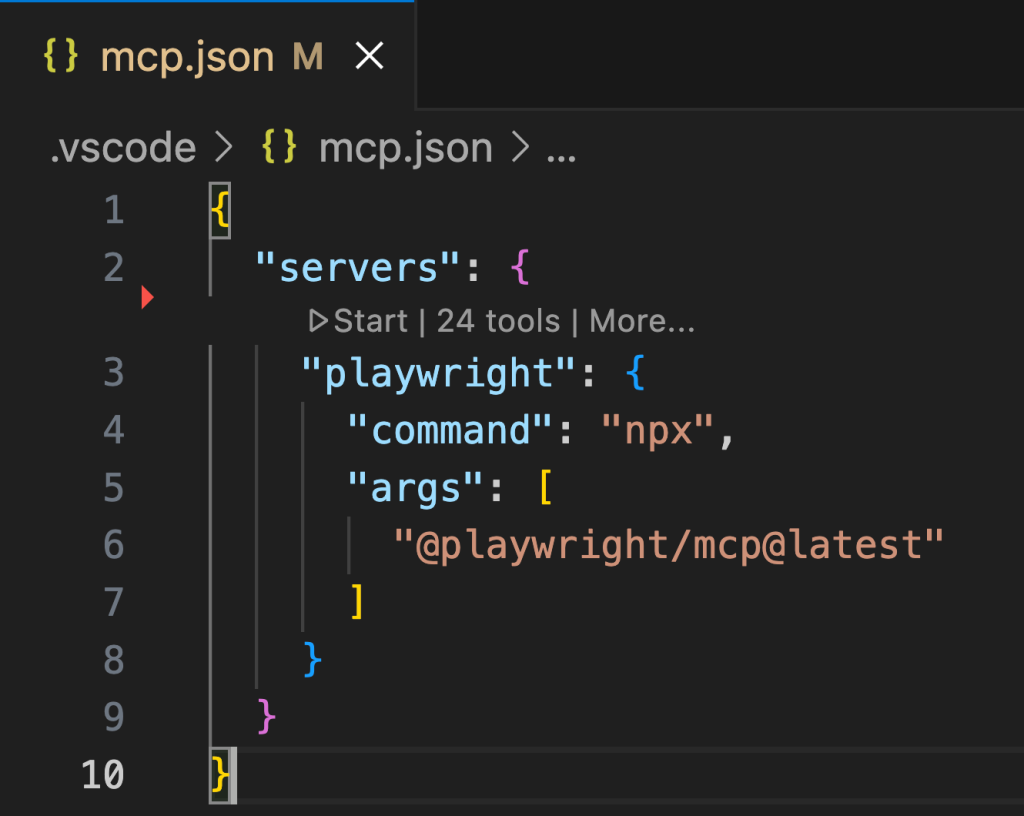
Furthermore, you might need to configure your environment for the MCP server to function correctly, ensuring that Node.js and npm are properly installed.
Unlocking Automation: Utilizing Copilot Agent Mode with Playwright MCP
Once the MCP server is operational, you can begin leveraging Copilot agent mode to automate your debugging efforts. The process starts by clearly documenting the steps required to reproduce the bug within a comment in your code. For instance:
// Bug: User cannot complete checkout due to an invalid address format.
// Steps:
// 1. Navigate to /products
// 2. Add item to cart
// 3. Proceed to checkout
// 4. Enter an invalid address
// 5. Attempt to submit the order
Subsequently, Copilot will utilize the Playwright MCP server to execute these steps automatically, identifying and potentially suggesting fixes for the underlying debugging issue. This significantly reduces manual effort and speeds up resolution.
Conclusion: Streamlining Development with Integrated Tools
In conclusion, integrating GitHub Copilot’s intelligent capabilities with the power of the Playwright MCP server represents a significant advancement in software development workflows. By automating the validation process and facilitating error resolution, this combined approach saves valuable time, reduces frustration, and ultimately contributes to higher-quality code through effective debugging practices. Moreover, it allows developers to focus on building new features rather than getting bogged down in repetitive troubleshooting tasks.
Source: Read the original article here.
Discover more tech insights on ByteTrending.
Discover more from ByteTrending
Subscribe to get the latest posts sent to your email.